
Excel percentage tutorial
 Many people ask how to work with a percentage in Excel. There’s no science – read this short tutorial, which I have prepared for you. Learn how to work with percentages calculations, how to change the number format to percentage, and add a % symbol directly using your keyboard. If this guide has helped you, become a fan on Facebook and recommend this site to your friends, it can be useful for them too.
The first thing is to understand how Excel uses percent. Believe that number registered with the percent symbol (%) or a number formatted as a percentage has the same importance as a decimal number. It is particularly suitable in formulas in Excel.
E.g. in cell A2 let us have the value of total revenue. In cell B2, enter a percentage or decimal number (both will have the same meaning for the formula). Income tax (Daň z příjmu) is then calculated as the product of rate (sazba) and income (příjem). Income after tax as income minus income tax. In the first row of the figure shown below we see the formula, then the second contains results for comparison.
It is important to note that when counting part of the whole it is always the product of a whole and specific percentages.

On the second example we show how to calculate the percentages of the total. Let us have values in the table, and their total sum in column B. In column C, calculate their share through a formula Value (Hodnota) divided by Total (Celkem). Calculated results we want to show as the percentage – just select the range and click on the tool bar Format (version 2003 and earlier) or the Home tab (version 2007 and higher) in Excel to find the icon with the percent (% percentage format). The result will look like in column D.
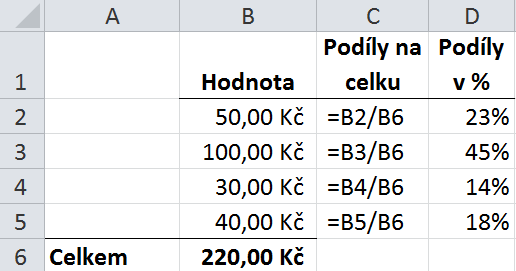
Format of percent always each number or formula multiplies by * 100 and then adds the % symbol. Number 0.5 formatted as percent sets to 50%, number 0.01 will be 1% and the number 1 is 100% in percentage.
Symbol % is sometimes necessary to write directly from the keyboard. But be careful when writing it, the icon in Excel for % format is not active because it can be be applied to the cell only after we confirm the contents of the cell (pressing Enter).
Directly from keyboard: symbol % can be found on the keyboard together with the Shift + = (Shift simultaneously and equals), depending of your keyboard language setting.
25 komentáře
Dobrý den, jak mám prosím vypočítat % zmetkovitosti.
Dám příklad, vyrobí se 5 000 ks, z toho je 300 vadných, jaká bude zmetkovitost v %?
Děkuji, Pája
Dobrý den, je to podíl zmetky / celek.
Chci se zeptat mám tržby jako 100% a z nákladů které jsou minuse položky třžeb mám udělat struktura jenže jeden náklad je mínusový to znamená že se počítá do plusu a když zadám mínusové procento tak mi vyskočí graf pod 0% a nad 100% co s tím??
Dobrý den, zkusil bych si udělat pomocný sloupec, v němž převedu hodnoty na absolutní hodnotu funkcí ABS. Tedy např. =ABS(A1) a z těchto hodnot poté udělat graf.
DObrý den, takhle to nejde
Dobrý den,
potřebuji v ceníku (verze v excelu) navýšit stávající ceny o 5%.
Prosím o radu jak na to.
Děkuji mnohokrát.
Dobrý den, použijte tento návod https://www.itlektor.cz/microsoft-excel/videonavod-vypocty-volbou-vlozit-jinak/