
Excel percentage tutorial
 Many people ask how to work with a percentage in Excel. There’s no science – read this short tutorial, which I have prepared for you. Learn how to work with percentages calculations, how to change the number format to percentage, and add a % symbol directly using your keyboard. If this guide has helped you, become a fan on Facebook and recommend this site to your friends, it can be useful for them too.
The first thing is to understand how Excel uses percent. Believe that number registered with the percent symbol (%) or a number formatted as a percentage has the same importance as a decimal number. It is particularly suitable in formulas in Excel.
E.g. in cell A2 let us have the value of total revenue. In cell B2, enter a percentage or decimal number (both will have the same meaning for the formula). Income tax (Daň z příjmu) is then calculated as the product of rate (sazba) and income (příjem). Income after tax as income minus income tax. In the first row of the figure shown below we see the formula, then the second contains results for comparison.
It is important to note that when counting part of the whole it is always the product of a whole and specific percentages.

On the second example we show how to calculate the percentages of the total. Let us have values in the table, and their total sum in column B. In column C, calculate their share through a formula Value (Hodnota) divided by Total (Celkem). Calculated results we want to show as the percentage – just select the range and click on the tool bar Format (version 2003 and earlier) or the Home tab (version 2007 and higher) in Excel to find the icon with the percent (% percentage format). The result will look like in column D.
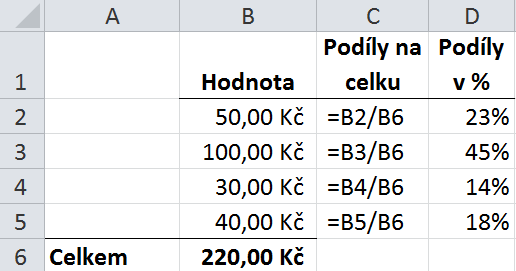
Format of percent always each number or formula multiplies by * 100 and then adds the % symbol. Number 0.5 formatted as percent sets to 50%, number 0.01 will be 1% and the number 1 is 100% in percentage.
Symbol % is sometimes necessary to write directly from the keyboard. But be careful when writing it, the icon in Excel for % format is not active because it can be be applied to the cell only after we confirm the contents of the cell (pressing Enter).
Directly from keyboard: symbol % can be found on the keyboard together with the Shift + = (Shift simultaneously and equals), depending of your keyboard language setting.
25 komentáře
Děkuji,Děkuji, Děkuji konečně jsem našla správný návod kdy jsem to vše pochopila .
Ahoj, chci se zeptat, je nějak jednoduše proveditelné odečíst třeba 5% z hodnot v celem sloupci, aniž bych to odečítal každé buňce zvlášť? Každá buňka representuje 100%. Děkuji
Ano, vynásobit čísla 95% (x 0,95). Když do nějaké pomocné buňky napíšu 0,95, označím buňku, dám CTRL+C. Pak označím sloupec, který chci o 5% snížit a dám Domů > Vložit jinak > Násobit. Tímto způsobem ani není třeba další sloupec se vzorcem, ale čísla se změní rovnou.
Nevěřil bych, že to může byt tak jednoduché :-). Děkuju moc za radu.
Dobrý den,
chtěl bych se zeptat jak vypočítám procento z dané částky
např. 450Kč a od toho -28%
předem děkuji za odpověď
Jan: Dobrý den, stačí 450Kč vynásobit rozdílem 100% a 28%, tj. 450 Kč * (100%-28%) = 450 * 0,72.
Zdravím, rád bych požádal: potřebuji vypočítat rozdíl v procentech dvou čísel. Stále mi to hlásí chybu. Zadávám =(B1-A1)/(A1)
Děkuji, Standa
Standa:Dobrý den, zkuste =B1/A1-1
Obě buňky by měly obsahovat čísla a nesmí být 0. Výsledek musí být správně naformátován na procenta, v dostatečně širokém sloupci.
Zdravím ještě jednou, Nejde mi to.
Ještě upřesňuji:
ve sloupci A je hodnota 100, ve sloupci B je hodnota 120; ve slouci C je vzorec-výsledek. O kolik % je částka vyšší/případně obráceně.
Děkuji, Standa