
15 tricks with doubleclick in Excel
How many tasks in Excel can be performed with double click? You may be surprised to learn that there are 15! Check out this guide and use tricks in practice. If this guide has helped you, become a fan on Facebook and recommend this site to your friends, it can be useful for them too.
- Opening a file
Double-click the file (eg. Excel with the extension .xls or .xlsx) in a specific folder to open it. - Closing file
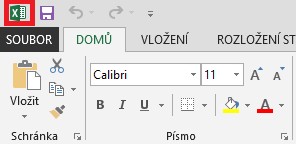
In the 2007 version you can double click on the Office button to close the file. In later versions, this serves the upper left corner of the window with a symbol of Excel. But normally it is used to close file with the cross button in the right corner.
Closing with double click - Split window
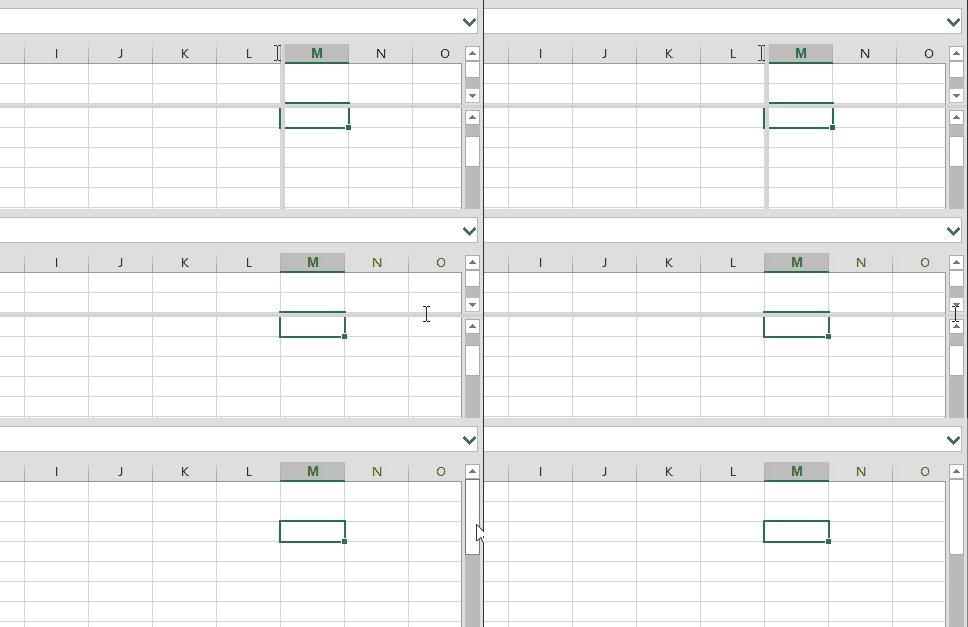
If you use the option View > Split to split the window into several parts, you can cancel it by double-clicking on the intersection of the dividing lines.Window split double click - Maximaze and reduce the window size
Double-click on the top bar of opened file (where we see the file name) to maximize the window to the full screen, or reduce it back to a floating window. - Hiding tabs
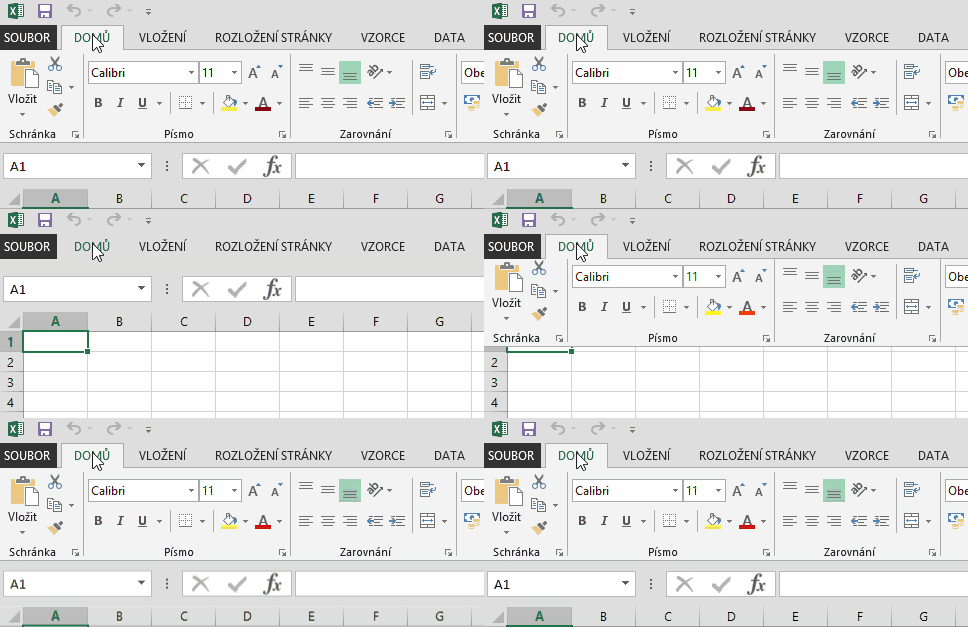
Double-click on any Tab name (except File tab) to minimize the Ribbon. It can be displayed again the same way .Minimize the Ribbon double click - Renaming sheet
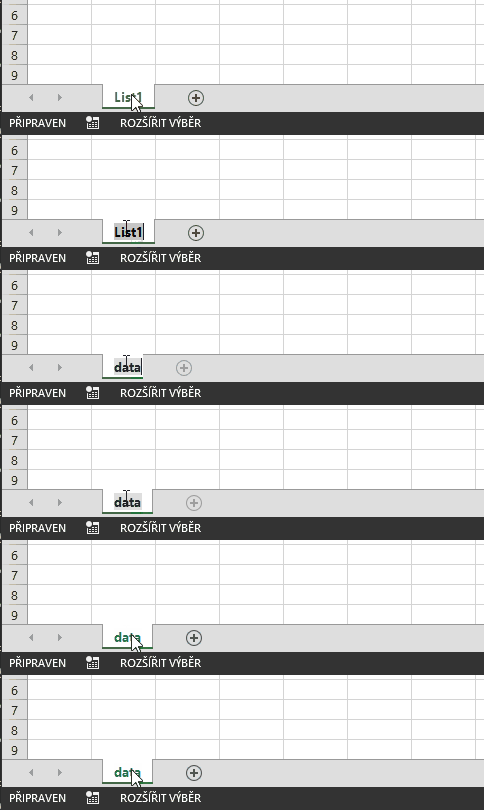
Double-clicking on the sheet tab you can easily rename it. New name confirm by pressing Enter.Rename sheet double click - Autofit column width
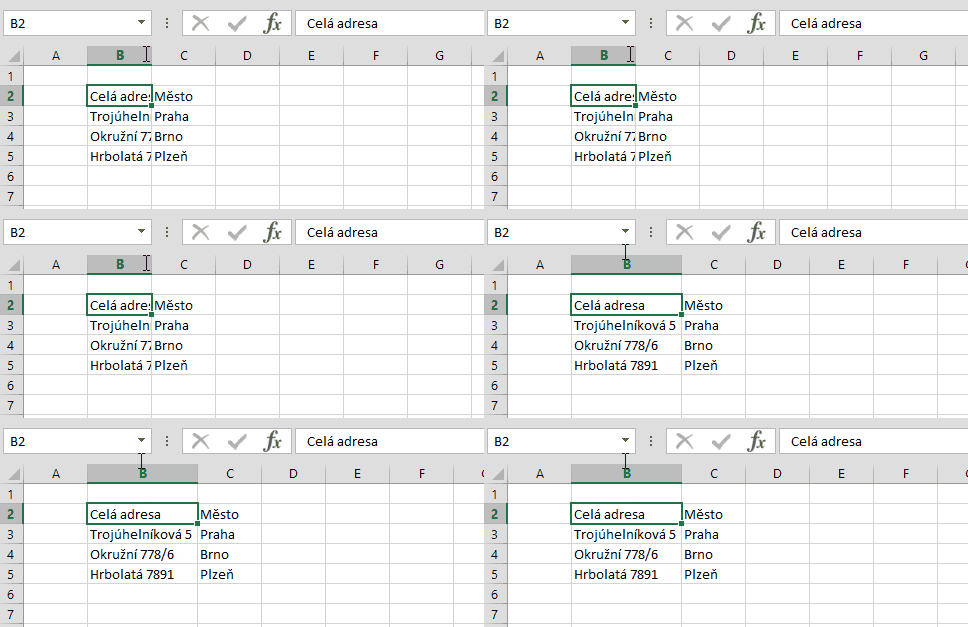
If the column width is too small, there are not visible longer words, tapping between two columns (e.g. B and C) set width automatically.Autofit width double click - Activate format painter
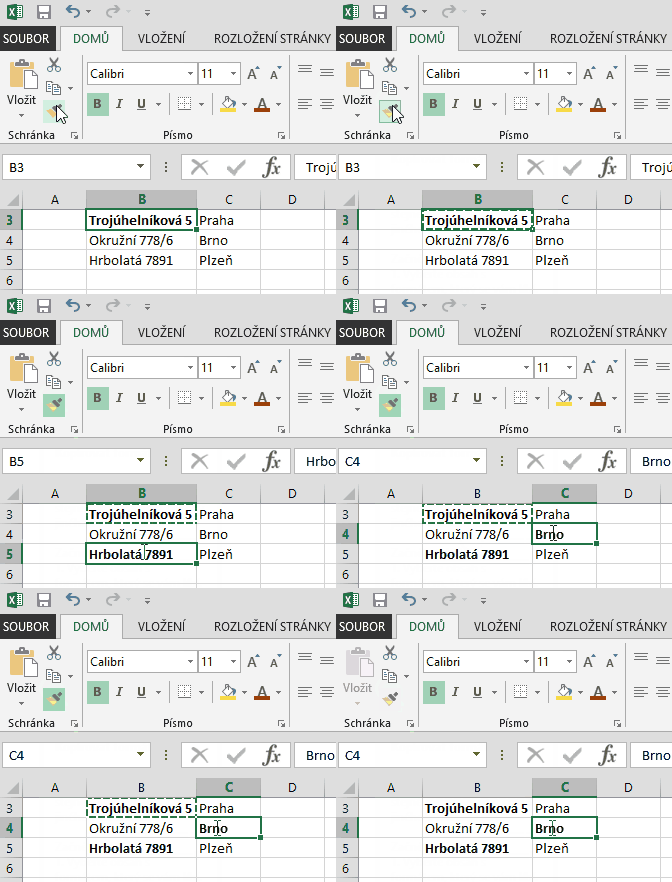
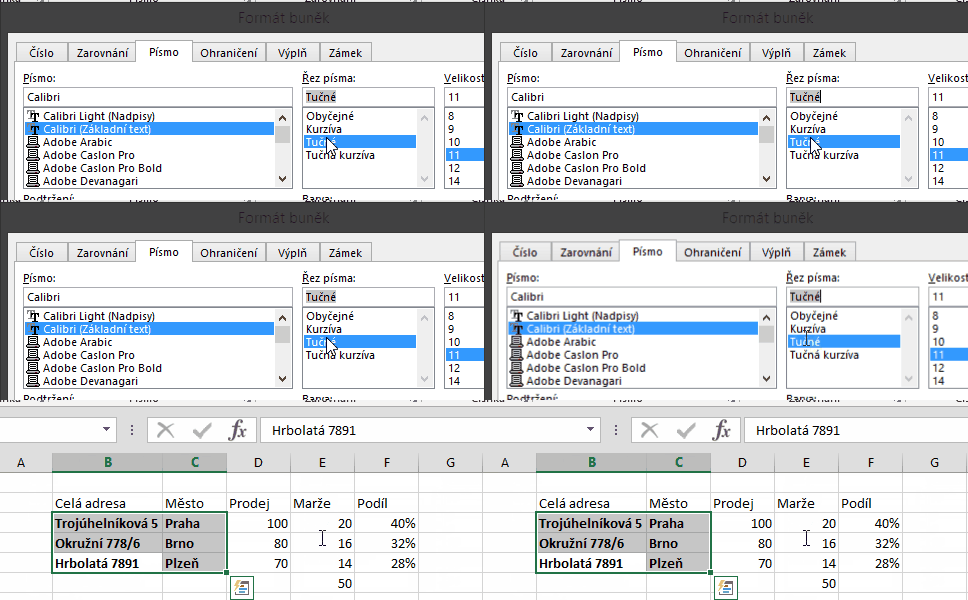
When copying the format to several cells at once, double-click the format painter to activate it for multiple use. After you finish, end copying by the Escape key. See more in this videotutorial.Format painter double click - Formula copying
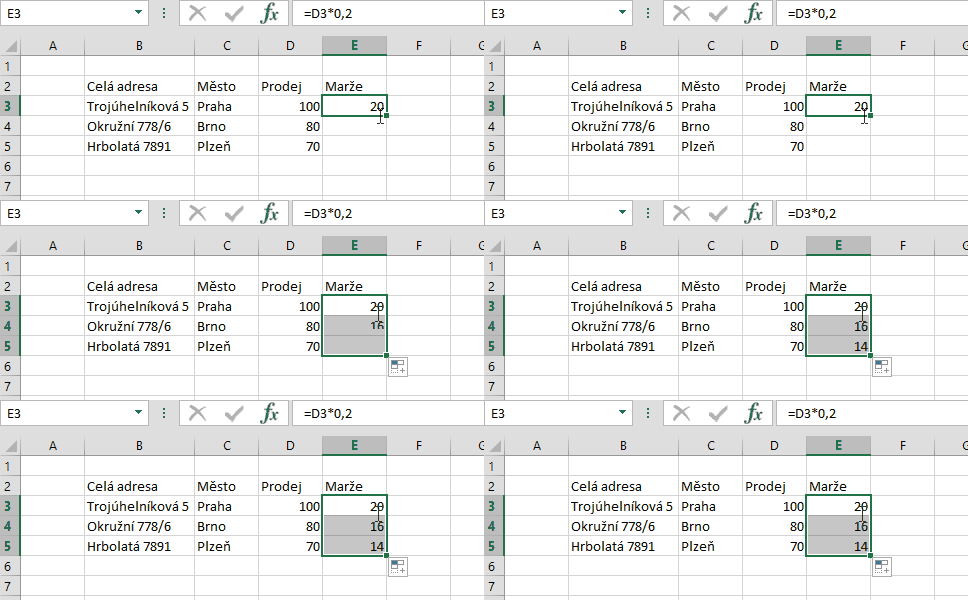
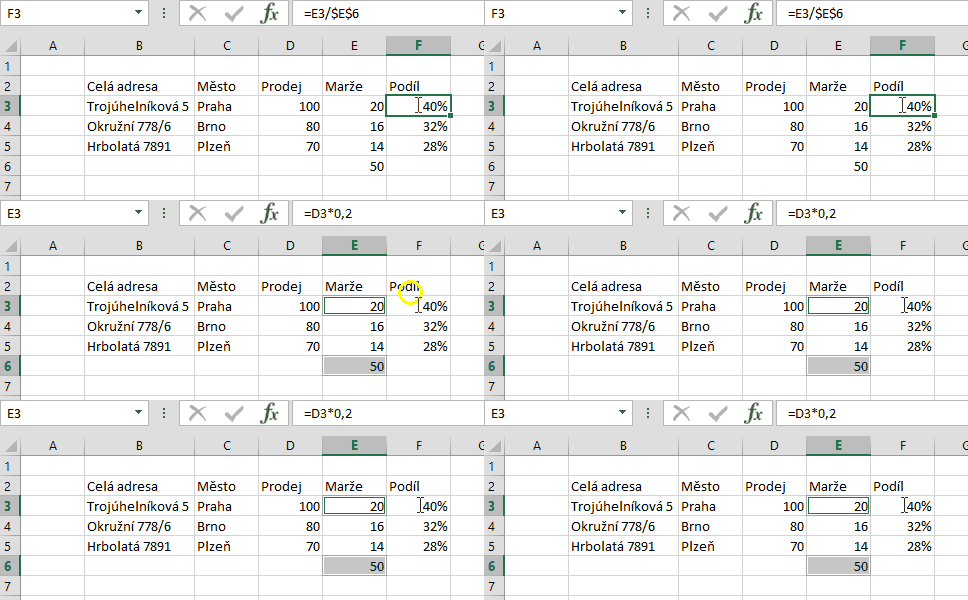
You can copy value or formula to the last cell in the column if you double-click the bottom right corner of the cell.Copy formula double click - Edit cell content
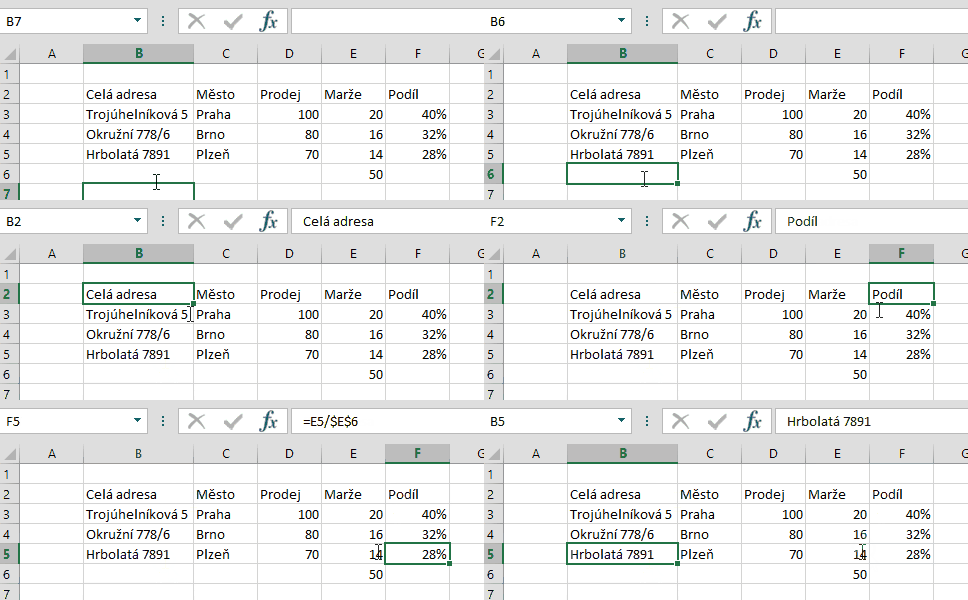
To edit the content of cell directly in it (without using the Formula bar) use double click on it, or use the F2 key.Edit cell content double click - Select formula source cells
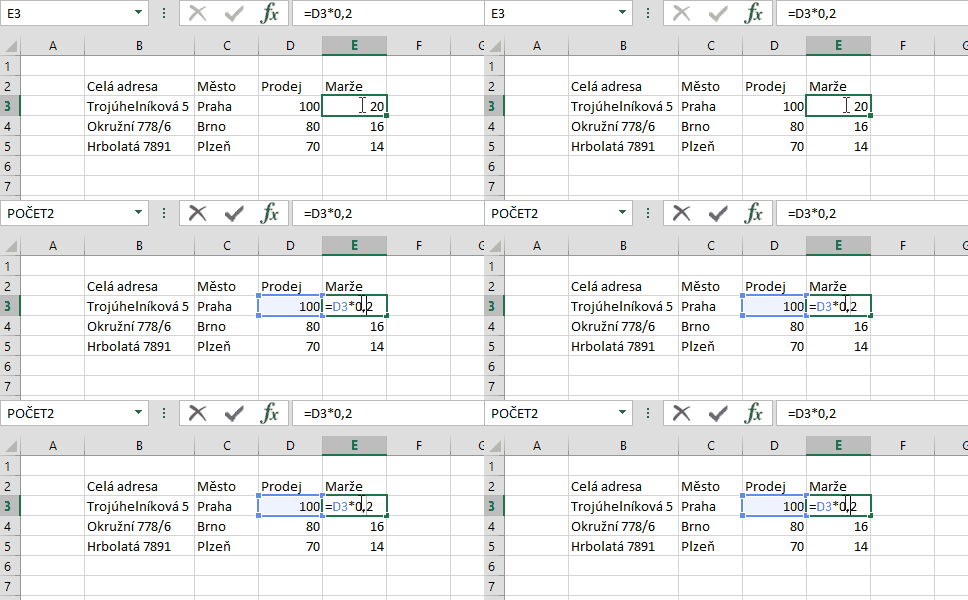
To determine which cells enter into the specific formula we can double-click the cell with the formula. This trick only works if you turn off the setting, select File > Options> Advanced> Allow editing directly in cells.Formula source cells double click - In-depth analysis in PivotTable
If you double-click into any cell of the numerical values in a PivotTable, Excel creates a new worksheet with a detailed list of records, which the number came from. This is called in-depth analysis. - Edit chart dialog
Double-click on any of the part of a chart to invoke the context menu (or pane) witch formatting options of selected area. - Moving through the sheet
Double-click on one of the sides of a table Excel jumps to the last filled cell in that direction.Moving through the sheet double click - Confirm OK alternative
In some dialog windows, double-click on selected option replaces the confirmation by selecting OK button.Double click instead of OK
1 komentář
Dobrý den, dá se nějak vypnout funkce pohybu po listu dvojklikem na okraj tabulky?